Communication
Deadlock implements a number of features to enable communication between players, both between allies and between players of both teams in a match.
Basics
Text chat
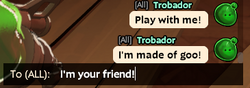
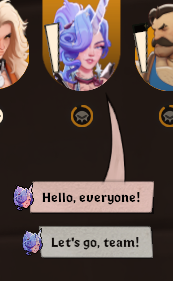
The text chat allows players and spectators to communicate through text messages. By pressing either "Chat (all)" (⇧ Shift + ⏎ Return by default) or "Chat (team)" (⏎ Return by default), the player can open a chat log that displays all messages sent throughout the game as speech bubbles, as well as a text field they can type into to send messages.
Newly sent messages by players are displayed below the sender's hero portrait in the top bar, in addition to the chat log. They are all laid out vertically in order of recency. A three-dot icon also appears below their portrait when they are currently typing.
"Chat (all)" allows sending messages to all players in the lobby, which will be displayed in a red-tinted bubble. "Chat (team)" allows players to send messages only visible to their allies, ideal for discussing strategy.
Spectators in a party also have access to a third channel that lets them send messages only visible to their party members. This is the only channel they have access to and is accessible through either chat keybind.
Text chat in Deadlock respects the player's Steam text filter settings, which allow players to choose to filter out strong profanity slurs as well as custom words. This feature can be configured in the user's Steam account preferences in the Community Content Preferences section.
Voice chat
The voice chat feature allows allied players and party members to communicate with each other using VoIP vocal communication. By holding "Voice (team)" (T by default), players can talk into a connected and configured microphone and be heard by their teammates. Players in a party can also talk to their other party members with the "Chat (party)" keybind (unset by default).
The player can configure the voice chat feature in various ways, such as choosing the microphone device to use, enabling open mic to constantly transmit microphone audio to their allies or party without having to hold the "Voice" button, adjusting the volume threshold for audio to be transmitted, or adjusting the volume of incoming voice audio.
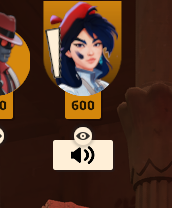
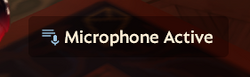
When a player is talking, an audio speaker icon appears below their hero portrait in the top bar. A "Microphone Activated" notification also displays in the bottom center of the player's screen when their voice audio is being transmitted.
Voice chat cannot be used to talk to members of the opposing team.
Pings
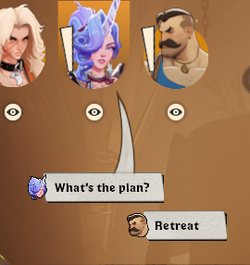
Pings, also known as voice commands, are a way to quickly communicate contextual information with the press of a single button, without having to use either text or voice chat. Pings can be sent in a variety of ways.
Pings usually appear alongside text chat messages in the chat log and under the sender's top bar hero portrait, with the exception of non-specific position pings sent through the minimap and certain responses from the chat wheel's contextual slot feature. Most pings are accompanied with a unique voice line from the sender's hero, and a subtle sound effect that varies based on the type of ping.
Sending the same ping multiple times in a row refreshes the display time of the first and adds an exclamation point ('!') at the end of it for every time it is sent. Any player sending a message between pings interrupts this. This action sometimes changes the ping sent based on context.
With the exception of the post-game pings "Good Game!", "Well Played!", "Thanks!" and "Good Job!" accessible through the chat wheel after the end of the game, pings are only visible to the sender's allies.
In-world Ping / Minimap pings
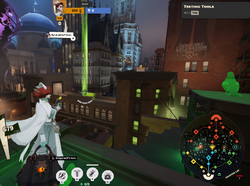
By pressing and releasing "In-world Ping" (unset by default) or "Ping / Chat Wheel" (Mouse3 / middle mouse button by default ; without holding it), the player can send a ping relating to whatever they are currently pointing at with their crosshair or mouse cursor. This includes objects in the world, like units, breakables and much more, but also interface elements hovered over when holding "HUD detail view" or in the Curiosity Shop interface, such as items, hero portraits, and ability icons.
Some of these pings can also be sent by either clicking or pressing "In-world Ping" or "Ping / Chat Wheel" while hovering over elements on the Minimap. Additionally, the targeted position of all in-world pings is shown on the Minimap and in the world through temporary markers.
Holding "In-world Ping" for long enough instead of releasing it will cancel the ping, while holding "Ping / Chat Wheel" will display the Chat Wheel instead. In-world pings cannot target positions behind Cosmic Veils, but they can target positions that aren't visible so long as line of sight is still physically conserved (e.g., a player outside the Sunken Plaza fog pit can ping positions and objects inside it).
The following tables show some of the possible ping phrases that can be sent through the in-world ping alongside the target objects that trigger them. The "Ping" column shows the ping's actual text while the "Voiceline" column lists the most common voicelines for the ping across the hero cast.
| In-world target | Minimap target | Ping | Voiceline | Notes |
|---|---|---|---|---|
| Mundane position | Mundane position | No text | None | Sent when there is no other valid target under the crosshair. Unlike other pings, does not trigger a voiceline: simply shows teammates the target position (first solid object under the crosshair) as a green marker in-world and on the minimap. |
| Curiosity Shop | Curiosity Shop | "Going to Shop" | "Going to shop!" | |
| Lane-side Curiosity Shop after closure | Not available | "Ignore the shop" | None | |
| Haunt, Crate or Buff Container | Not available | "Going to farm" | "Going to farm!" | |
| Zipline while inside the ally base | Not available | "Headed to [York/Broadway/Greenwich]" | "Headed to [York/Broadway/Greenwich]!"/"Headed to [Yellow/Blue/Green]!" | The ping changes based on which lane's zipline is targeted.
Heroes refer to the lane by their real name or their color interchangeably in voicelines. |
| Zipline's enemy side | Zipline's enemy side | "Push [York/Broadway/Greenwich]" | "Let's push [York/Broadway/Greenwich]!"/"Let's push [Yellow/Blue/Green]!" | The ping changes based on which lane's zipline is targeted.
Heroes refer to the lane by their real name or their color interchangeably in voicelines. |
| Any zipline's allied side while outside the ally base | Zipline's allied side | "Going to base" | "Going to base!" | |
| Allied Guardian or Walker | Allied Guardian or Walker | "Defend the [York/Broadway/Greenwich] [Guardian/Walker]" | "Defend [York/Broadway/Greenwich]!"/"Defend [Yellow/Blue/Green]!" | The ping changes based on which lane and which tower is targeted.
Heroes refer to the lane by their real name or their color interchangeably in voicelines, but do not specify which objective is targeted. |
| Allied Base Guardian | Allied Base Guardian | "Defend the [York/Broadway/Greenwich] Base Guardian" | "Defend the base!" | |
| Allied Shrine or Patron | Allied Shrine or Patron | "Defend the Shrine/Patron" | "Defend the base!" | |
| Enemy Guardian or Walker | Enemy Guardian or Walker | "Push the [York/Broadway/Greenwich] [Guardian/Walker]" | "Let's push [York/Broadway/Greenwich]!"/"Let's push [Yellow/Blue/Green]!" | The ping changes based on which lane and which tower is targeted.
Heroes refer to the lane by their real name or their color interchangeably in voicelines, but do not specify which objective is targeted. |
| Allied Base Guardian | Allied Base Guardian | "Push the [York/Broadway/Greenwich] Base Guardian" | "Let's push [York/Broadway/Greenwich]!"/"Let's push [Yellow/Blue/Green]!" | The ping changes based on which lane's Base Guardian is targeted.
Heroes refer to the lane by their real name or their color interchangeably in voicelines, but do not specify which objective is targeted. |
| Enemy Shrine | Enemy Shrine | "Push the Shrine" | No voiceline | |
| Enemy Patron | Enemy Patron | "Push the Patron" | "Let's take their patron!" | |
| Allied Trooper | Not available | "Defend [York/Broadway/Greenwich]" | "Defend [York/Broadway/Greenwich]!"/"Defend [Yellow/Blue/Green]!" | The ping changes based on which lane the trooper is on.
Heroes refer to the lane by their real name or their color interchangeably in voicelines. |
| Enemy Trooper | Not available | "I'll deal with the troopers" | "I'll deal with the troopers" | |
| Sinner's Sacrifice | Not available | "Sinner's Sacrifice is here" | "Sinner's here!" | |
| Unattended Soul Urn | Unattended Soul Urn | "Soul Urn is here" | "Soul Urn is here!"/"Urn is here!"/"Soul jar is here!" | |
| Ally carrying theSoul Urn, or urn depositing point when it is held by an ally | Ally carrying theSoul Urn, or urn depositing point when it is held by an ally | "Help deliver the Urn" | "Help deliver the Urn" | The carrier's hero icon is also shown in front of the ping when they're targeted. |
| Enemy carrying theSoul Urn, or urn depositing point when it is held by an enemy | Enemy carrying theSoul Urn, or urn depositing point when it is held by an enemy | [hero icon] "They have the Urn!" | "They have the Urn!" | The carrier's hero icon is also shown in front of the ping when they're targeted.
Pinging the carrier successively 3 or more times will change the ping to "Attack [hero name]" instead. |
| Allied hero | Allied hero | [Hero icon] "I'm with you" | "I'm with you, [hero name]!" | The ping changes based on the targeted hero. |
| Isolated allied hero | Isolated allied hero | [Hero icon] "Careful" | "Careful, [hero name]!" | The ping changes based on the targeted hero.
Occurs if the target hero is not within ~25m of another ally. |
| Enemy hero | Revealed enemy hero | [Hero icon] "Spotted" | "I see [hero name]!" | The ping changes based on the targeted hero. |
| Enemy hero, after 3 or more successive pings | Revealed enemy hero, after 3 or more successive pings | [Hero icon] "Attack [hero name]" | "Let's take out [hero name]!" | The ping changes based on the targeted hero.
Some voicelines refer to heroes in different ways than their official name. |
| Enemy hero at Critical health | Revealed enemy hero at Critical health | [Hero icon] "is almost dead" | "[hero name] is almost dead!" | The ping changes based on the targeted hero.
Some voicelines refer to heroes in different ways than their official name. |
| Powerup | Powerup | "[Gun/Casting/Survival/Movement] Buff Here" | "Bridge buff's here!" | The ping changes based on the bridge buff type.
The type is also shown as an icon bottom right of the ping's speech bubble. |
| Midboss when no enemy heroes are present | Midboss when no enemy heroes are present | "Mid Boss is Here" | No voiceline | When pinged through the Minimap, the ping does not send text but still plays a different sound effect. |
| Midboss when one or more enemy heroes are present | Midboss when one or more enemy heroes are present | "They're going for the Rejuvenator" | "They're going for the Rejuvenator!"/"They're going for the Rejuv!"/ | |
| Midboss, two or more successive pings | Midboss, two or more successive pings | "Let's go for the Rejuvenator" | "Let's go for the Rejuvenator!"/"Let's go for the Rejuv!" | |
| Unstable Rift | Unstable Rift | "Rift on [York/Broadway/Greenwich]" | No voiceline | Can be sent even before the rift appears on the minimap. |
| Soul bag | Not available | "Soul bag here" | "Soul bag here!" | |
| Placed Doorway | Placed Doorway | "Door's here" | "Door's here!" | |
| Steam vent | Not available | "Let's hide here" | "Let's hide here!" |
| Target | Ping | Voiceline | Notes |
|---|---|---|---|
| Sender's own top bar portrait | "Need help on [York/Broadway/Greenwich]" | "Need help on [York/Broadway/Greenwich]!"/"Need help on [Yellow/Blue/Green]!" | The ping changes based on which lane the sender is on.
Heroes refer to the lane by their real name or their color interchangeably in voicelines. |
| Sender's own top bar portrait when carrying the Soul Urn | "Help me deliver the Urn" | "Help me deliver the Urn" | |
| Allied hero's top bar portrait | [Hero icon] "I'm with you" | "I'm with you, [hero name]!" | The ping changes based on the targeted hero. |
| Isolated allied hero's top bar portrait | [Hero icon] "Careful" | "Careful, [hero name]!" | The ping changes based on the targeted hero.
Occurs if the target hero is not within ~25m of another ally. |
| Revealed enemy hero's top bar portrait | [Hero icon] "Spotted" | "I see [hero name]!" | The ping changes based on the targeted hero.
Some voicelines refer to heroes in different ways than their official name. |
| Revealed enemy hero's top bar portrait, after 3 or more successive pings | [Hero icon] "Attack [hero name]" | "Let's take out [hero name]!" | The ping changes based on the targeted hero.
Some voicelines refer to heroes in different ways than their official name. |
| Enemy hero's top bar portrait at Critical health | [Hero icon] "is almost dead" | "[hero name] is almost dead!" | The ping changes based on the targeted hero.
Some voicelines refer to heroes in different ways than their official name. |
| Dead hero's top bar portrait | [Hero icon] "is dead" | [Hero icon] "is dead!" | |
| Dead hero respawning in less than 10 seconds's top bar portrait | [Hero icon] "is almost dead" | No voiceline | |
| Missing enemy hero's top bar portrait | [Hero icon] "is missing" | "[hero name] is missing." | The ping changes based on the targeted hero.
Some voicelines refer to heroes in different ways than their official name. |
| Enemy hero's top bar portrait carrying the Soul Urn | [hero icon] "They have the Urn!" | "They have the Urn!" | Pinging the carrier successively 3 or more times will change the ping to "Attack [hero name]" instead. |
| Icon of sender's available ability | "[Ability name] is ready!" | "[Ability name] is ready!"/"Ready to use [ability name]!" | The ping changes based on the ability.
Voiceline script varies a lot based on the ability and hero. Some voicelines may use different names for the ability. |
| Icon of sender's ability on cooldown | "[Ability name] is on cooldown" | "[Ability name] is on cooldown!" | The ping changes based on the ability.
Voiceline script varies a lot based on the ability and hero. Some voicelines may use different names for the ability. |
| Icon of other hero's ultimate ability when available | "[hero name]'s ult is ready!" | "[hero name]'s ult is ready!" | |
| Icon of other hero's ultimate ability when on cooldown | "[hero name]'s ult is on cooldown!" | No voiceline | |
| Un-owned item in the Curiosity Shop interface | "Someone buy [item name]" | "We should get this." | The ping changes based on the item. |
| Owned item in the Curiosity Shop interface, the inventory, or below the sender's top bar hero portrait | "I have [item name]" | "I bought this." | The ping changes based on the item. |
| Available active item in the Curiosity Shop interface, the inventory, or below the sender's top bar hero portrait | "[item name] is ready" | "Ready to use item." | The ping changes based on the item. |
| Active item on cooldown in the Curiosity Shop interface, the inventory, or below the sender's top bar hero portrait | "[item name] is on cooldown" | "Item's on cooldown!" | The ping changes based on the item. |
| Item below enemy hero's top bar portrait | "[hero icon] bought [item name]" | "Check out what [hero name] bought." | The ping changes based on the item and hero. |
Chat Wheel
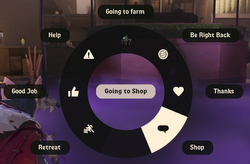
When holding "Ping / Chat Wheel" instead, the chat wheel will display. It offers 8 phrases that can be selected and sent by hovering over them and releasing the keybind.
Unlike in-world pinging, chat wheel pings are accessible regardless of context, though they may change slightly based on the situation, such as the sender's location or the number of successive pings. Some options have multiple variations which show up as a separate section outside of the main chat wheel.
The chat wheel can be configured in the game's Communication settings, with many ping options being assignable to any of the slots. Every ping wheel phrase has a unique internal ID.
When a game ends, the chat wheel's options are temporarily replaced for all players by "Good Game!", "Well Played!", "Thanks!" and "Good Job!". These pings, if sent, are uniquely visible to all players, on both teams.
While the chat wheel only makes eight ping options available at a time, it is possible to use the ping_wheel_phrase_[0-7] [phrase id] console command to set the phrase for a slot, allowing players to create command scripts and bind them to a key of their choice to change to a different set of phrases at any time. It's also possible to use this command to assign phrases to chat wheel slots that are unavailable in the settings (as they relate to now removed elements of the game).
The table below shows all available ping wheel phrases alongside their IDs.[1]
| ID | Phrase | Notes |
|---|---|---|
| 1 | Going In | |
| 2 | Need Help! | |
| 3 | Yes! | |
| 4 | Thanks | |
| 5 | Retreat | |
| 6 | Stay Together | |
| 7 | Defend Lane! | Sends the line for the corresponding lane based on sender's location. |
| 8 | Defend York | Cannot be selected in the game settings. |
| 9 | Defend Greenwich | Cannot be selected in the game settings. |
| 10 | Defend Broadway | Cannot be selected in the game settings. |
| 11 | Defend Purple | Cannot be selected in the game settings.
Refers to the now removed Purple lane. Still usable in-game but will use "Defend Greenwich" voice lines instead. |
| 12 | Be right back! | |
| 13-16 | None | ID 13-16 do not have phrases and crash the game if used. |
| 17 | No | |
| 18 | Good Job! | |
| 19 | Good Game! | Only usable post-game. Visible to all players. |
| 20 | Well Played! | Only usable post-game. Visible to all players. |
| 21 | Thanks! | Only usable post-game. Visible to all players. |
| 22 | Good Job! | Only usable post-game. Visible to all players. |
| 23 | On my Way | |
| 24 | Push! | Sends the line for the corresponding lane based on sender's location. |
| 25 | Push York | Cannot be selected in the game settings. |
| 26 | Push Greenwich | Cannot be selected in the game settings. |
| 27 | Push Broadway | Cannot be selected in the game settings. |
| 28 | Push Purple | Cannot be selected in the game settings.
Refers to the now removed Purple lane. Still usable in-game but will use "Push Greenwich" voice lines instead. |
| 29 | Spotted | Cannot be selected in the game settings.
Normally a contextual ping. Will always show whitespace where the hero's name should be, even if a hero is under the cursor. Uses a generic "I see the enemy!" voiceline when available. |
| 30 | Careful | Cannot be selected in the game settings.
Normally a contextual ping. Will always show whitespace where the hero's name should be, even if a hero is under the cursor. Uses "Watch out! voiceline when available. |
| 31 | is missing | Cannot be selected in the game settings.
Normally a contextual ping. Will always show whitespace where the hero's name should be, even if a hero is under the cursor. No voiceline. |
| 32 | Heal Please | |
| 33 | I can heal you | Cannot be selected in the game settings.
Normally a contextual ping. Does not show a healing ability icon even when one is available. Heroes who have a "I can heal you" voice line will use it here, others will have no voiceline. |
| 34 | What's the plan? | |
| 35-37 | None | ID 35-37 do not have phrases and crash the game if used. |
| 38 | Heading to York | Cannot be selected in the game settings. |
| 39 | Heading to Greenwich | Cannot be selected in the game settings. |
| 40 | Heading to Broadway | Cannot be selected in the game settings. |
| 41 | Heading to Purple | Cannot be selected in the game settings.
Refers to the now removed Purple lane. Still usable in-game but will use "Heading to Greenwich" voice lines instead. |
| 42 | Heading to lane | Sends the line for the corresponding lane based on sender's location. |
| 43 | Help me deliver the urn | Cannot be selected in the game settings. Instead, ID 125 is used. |
| 44 | You're Welcome | |
| 45 | Sorry | |
| 46 | Going to Shop | |
| 47 | Come with Me! | |
| 48 | Going to Gank | |
| 49 | Rejuv's Dropping | |
| 50 | Cover me! | |
| 51 | Never mind | |
| 52 | I'm not ready for a teamfight | |
| 53 | We need to press the advantage! | |
| 54 | Let's hide here | |
| 55 | It's dangerous here... | |
| 56 | I'll deal witht he troopers | |
| 57 | Let's meet here | |
| 58 | I'll flank 'em | |
| 59 | None | Previously used for pre-game pings, before the rooftop game start period was removed. Now unusable. |
| 60 | I'm leaving the area! | |
| 61 | Going to farm | |
| 62 | Let's steal their farm | |
| 63 | Going to Rat! | |
| 64 | Let's split push | |
| 65 | I'm leaving | |
| 66 | Don't overextend | |
| 67 | They're stealing our camps | |
| 68 | The Rift is Emerging | |
| 69 | Rift Here! | |
| 70 | Mid Boss is Here | |
| 71 | Let's go for the Rejuvenator | |
| 72 | Buff Here | Cannot be selected in the game settings.
Normally a contextual ping. Does not show the buff type even when one is targeted. |
| 73 | Let's go this way | |
| 74 | Push the Guardian | Sends the line for the corresponding lane based on sender's location. |
| 75 | Push the York Guardian | Cannot be selected in the game settings. |
| 76 | Push the Broadway Guardian | Cannot be selected in the game settings. |
| 77 | Push the Greenwich Guardian | Cannot be selected in the game settings. |
| 78 | Push the Purple Guardian | Cannot be selected in the game settings.
Refers to the now removed Purple lane. Still usable in-game but will use "Push Greenwich" voice lines instead. |
| 79 | Defend the Guardian | Sends the line for the corresponding lane based on sender's location. |
| 80 | Defend the York Guardian | Cannot be selected in the game settings. |
| 81 | Defend the Broadway Guardian | Cannot be selected in the game settings. |
| 82 | Defend the Greenwich Guardian | Cannot be selected in the game settings. |
| 83 | Defend the Purple Guardian | Cannot be selected in the game settings.
Refers to the now removed Purple lane. Still usable in-game but will use "Defend Greenwich" voice lines instead. |
| 84 | Push the Walker | Sends the line for the corresponding lane based on sender's location. |
| 85 | Push the York Walker | Cannot be selected in the game settings. |
| 86 | Push the Broadway Walker | Cannot be selected in the game settings. |
| 87 | Push the Greenwich Walker | Cannot be selected in the game settings. |
| 88 | Push the Purple Walker | Cannot be selected in the game settings.
Refers to the now removed Purple lane. Still usable in-game but will use "Push Greenwich" voice lines instead. |
| 89 | Defend the Walker | Sends the line for the corresponding lane based on sender's location. |
| 90 | Defend the York Walker | Cannot be selected in the game settings. |
| 91 | Defend the Broadway Walker | Cannot be selected in the game settings. |
| 92 | Defend the Greenwich Walker | Cannot be selected in the game settings. |
| 93 | Defend the Purple Walker | Cannot be selected in the game settings.
Refers to the now removed Purple lane. Still usable in-game but will use "Defend Greenwich" voice lines instead. |
| 94 | Push the Base Guardian | Sends the line for the corresponding lane based on sender's location. |
| 95 | Push the York Base Guardian | Cannot be selected in the game settings. |
| 96 | Push the Broadway Base Guardian | Cannot be selected in the game settings. |
| 97 | Push the Greenwich Base Guardian | Cannot be selected in the game settings. |
| 98 | Push the Purple Base Guardian | Cannot be selected in the game settings.
Refers to the now removed Purple lane. Still usable in-game but will use "Defend Greenwich" voice lines instead. |
| 99 | Defend the Base Guardian | Sends the line for the corresponding lane based on sender's location. |
| 100 | Defend the York Base Guardian | Cannot be selected in the game settings. |
| 101 | Defend the Broadway Base Guardian | Cannot be selected in the game settings. |
| 102 | Defend the Greenwich Base Guardian | Cannot be selected in the game settings. |
| 103 | Defend the Purple Base Guardian | Cannot be selected in the game settings.
Refers to the now removed Purple lane. Still usable in-game. |
| 104 | Push the Patron | |
| 105 | Defend the Patron | |
| 107 | Push the Shrine | |
| 108 | Defend the Shrine | |
| 109 | Let's attack here | |
| 110 | Let's defend here | |
| 111 | Attack this hero | |
| 112 | Ignore this hero | |
| 113 | Careful | |
| 114 | I'm with you | |
| 115 | Are you ready? | |
| 116 | My Ultimate is ready | |
| 117 | My Ultimate is on cooldown | |
| 118 | Heading here | |
| 119 | Watch out! | |
| 120 | Going to the Urn | |
| 121 | Going to base | |
| 122 | Going to push | |
| 123 | Going to defend | |
| 124 | Going to the <name> Buff | Cannot be selected in the game settings.
Normally a contextual ping. Does not show the buff type even when one is targeted. |
| 125 | Help deliver the Urn | |
| 126 | They have the Urn! | |
| 127 | Need help on York | Cannot be selected in the game settings. |
| 128 | Need help on Broadway | Cannot be selected in the game settings. |
| 129 | Need help on Greenwich | Cannot be selected in the game settings. |
| 130 | Need help on Purple | Cannot be selected in the game settings.
Refers to the now removed Purple lane. Still usable in-game. |
| 139 | Stick with me | |
| 140 | Someone buy | Cannot be selected in the game settings.
Normally a contextual ping. Does not show the item name even when one is targeted. |
| 141 | Don't buy | Cannot be selected in the game settings.
Normally a contextual ping. Does not show the item name even when one is targeted. |
| 142 | I'm buying | Cannot be selected in the game settings.
Normally a contextual ping. Does not show the item name even when one is targeted. |
| 143 | I have | Cannot be selected in the game settings.
Normally a contextual ping. Does not show the item name even when one is targeted. |
| 144 | is a good pick | Cannot be selected in the game settings.
Normally a contextual ping. Does not show the item name even when one is targeted. |
| 145 | York needs help | Cannot be selected in the game settings. |
| 146 | Greenwich needs help | Cannot be selected in the game settings. |
| 147 | Broadway needs help | Cannot be selected in the game settings. |
| 148 | Purple needs help | Cannot be selected in the game settings.
Refers to the now removed Purple lane. Still usable in-game. |
| 149 | This Lane Needs Help! | Sends the line for the corresponding lane based on sender's location. |
| 150 | is dead | Cannot be selected in the game settings.
Normally a contextual ping. Does not show the hero name even when one is targeted. |
| 151 | Shop's closed | Cannot be selected in the game settings. |
| 152 | Visit the shop | Cannot be selected in the game settings. |
| 153 | Ignore the shop | Cannot be selected in the game settings. |
| 154 | No Problem | |
| 155 | is almost dead | Cannot be selected in the game settings.
Normally a contextual ping. Does not show the hero name even when one is targeted. |
| 156 | Door's here | Cannot be selected in the game settings. |
| 157 | is almost back | Cannot be selected in the game settings.
Normally a contextual ping. Does not show the hero name even when one is targeted. |
| 158 | Wait | |
| 159 | Going to The Broker | |
| 160 | Visit The Broker | Displays as "Going to The Broker" in the chat wheel. |
| 161 | Ignore the Broker | Cannot be selected in the game settings. |
| 162 | York Guardian needs help | Cannot be selected in the game settings. |
| 163 | Greenwich Guardian needs help | Cannot be selected in the game settings. |
| 164 | Broadway Guardian needs help | Cannot be selected in the game settings. |
| 165 | Purple Guardian needs help | Cannot be selected in the game settings.
Refers to the now removed Purple lane. Still usable in-game. |
| 166 | Our Guardian Needs Help | Sends the line for the corresponding lane based on sender's location. |
| 167 | Sinner's Sacrifice is here | |
| 168 | They're going for the Rejuvenator | |
| 169 | They're taking our Patron | |
| 170 | Soul bag here | Cannot be selected in the game settings. |
| 171 | Okay | |
| 172 | Look here! | |
| 173 | Someone was here | Cannot be selected in the game settings. |
Contextual Slot
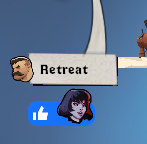
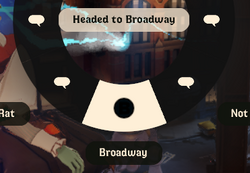
The Contextual Slot is an optional setting that replaces slot 5 (the bottom/south slot) of the chat wheel when enabled, and gives the player access to various contextual pings based on the situation. Contextual Slot pings notably allow one to respond to recent pings by other allies. The following are examples of pings offered by the contextual slot:
- If a player is heading to a lane on a zipline, they can use "Heading to [lane]";
- If they are retreating to base, they can use "I'll be right back";
- If another player pings a lane or objective, they can use "Yes / I'm going in", which appears as a blue thumbs up bubble with the player's icon under the original text bubble.
The contextual slot is a separate setting from the selectable chat wheel ping options, and can only be assigned to slot 5, which it replaces the selection for.
Mini chat wheel
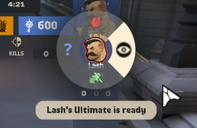
Holding "Ping / Chat Wheel" over certain elements on the minimap or the interface while holding "HUD detail view" will open a mini chat wheel, which lets the player send one of four pings. Unlike the main chat wheel, the ping options cannot be configured, and are specific to the element in question, though they are always laid out in correspondence to the ping's intent, indicated by an icon:
- The upper/north ping has a red fist icon and is generally aggressive ("Attack <hero name>!" or "Push lane")
- The right/east ping has a yellow eye icon and is usually informative ("Help is needed here" or "<hero>'s ultimate is ready/on cooldown")
- The bottom/south ping has a green icon of a person running away and is usually defensive ("Retreat" or "Defend here")
- The left/west ping has a blue icon of a question mark and is usually inquisitive ("What's the plan?" or "<hero> is missing")
This table shows some of the pings that can be sent using the mini chat wheel on different elements:
| Target | Top | Right | Bottom | Left |
|---|---|---|---|---|
| Mundane position | "Let's attack here" | "Need help on [York/Broadway/Greenwich]!" | "Let's defend here" | "Heading here" |
| Sender's own top bar portrait | "Stick with me" | "My ultimate is ready"/"My ultimate is on cooldown" | "Retreat" | "What's the plan?" |
| Allied hero's top bar portrait or minimap icon | "I'm with you" | "[hero name]'s ultimate is ready"/"[hero name]'s ultimate is on cooldown" | "Careful" | "Are you ready?" |
| Enemy hero's top bar portrait or minimap icon | "Attack [hero name]" | "[hero name]'s ultimate is ready"/"[hero name]'s ultimate is on cooldown" | "Ignore them" | "Enemy is missing" |
| Allied Guardian, Walker or Base Guardian | "Push [York/Broadway/Greenwich]" | "[York/Broadway/Greenwich] [Guardian/Walker/Base Guardian] needs help" | "Defend the [York/Broadway/Greenwich] [Guardian/Walker/Base Guardian]" | "Headed to [York/Broadway/Greenwich]" |
| Enemy Guardian, Walker or Base Guardian | "Push the [York/Broadway/Greenwich] [Guardian/Walker/Base Guardian]" | "[York/Broadway/Greenwich] needs help" | "Defend [York/Broadway/Greenwich]" | "Headed to [York/Broadway/Greenwich]" |
| Allied Shrine | "Let's attack here" | "Need help on [York/Greenwich]!" | "Defend the Shrine" | "Going to base" |
| Enemy Shrine | "Push the Shrine" | "Need help on [York/Greenwich]!" | "Let's defend here" | "Going to push" |
| Allied Patron | "Let's attack here" | "They're taking our patron" | "Defend the Patron" | "Going to base" |
| Enemy Patron | "Push the Patron" | "Need help on York" [sic] | "Let's defend here" | "Going to push" |
| Powerup | "Let's attack here" | "[buff type] Buff Here" | "Let's defend here" | "Going to the [buff type] Buff" |
| Midboss | "Let's go for the Rejuvenator" | "Mid Boss is Here" | "They're going for the Rejuvenator" | "Heading here" |
| Soul Urn, or allied hero carrier's top bar portrait or Minimap icon, or drop-off point when Urn is carried by an ally hero | "Help deliver the Urn" | "Soul Urn is here!" | "Let's defend here" | "Going to the Urn" |
| Enemy hero carrying the Soul Urn's top bar portrait or Minimap icon | "Attack [hero name]" | "They have the urn!" | "Let's defend here" | "Going to the Urn" |
| Soul Urn drop-off point when Urn is carried by an enemy hero | "Let's attack here" | "They have the urn!" | "Let's defend here" | "Going to the Urn" |
| Curiosity Shop | "Visit the shop" | "Need help on [York/Broadway/Greenwich]!" | "Ignore the shop" | "Going to Shop" |
| Unstable Rift | "Let's attack here" | "Rift on [York/Broadway/Greenwich]!" | "Let's defend here" | "Heading here" |
Minimap drawing
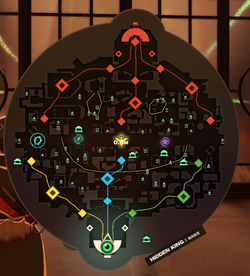
Players can also draw on the Minimap by holding the right mouse button and moving the mouse on it while holding "HUD detail view". This can be useful to point out specific locations or plan a route without having to use verbal or textual language.
Drawings are visible to all allies, and fade away over time. Players on a team can all draw at the same time, and each player's drawings are in a different color specific to their chosen hero.
Ignore
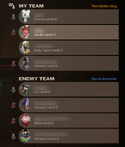
The player can ignore other players in the lobby if they so choose. The ignored player's text messages and pings will no longer be visible to the player who ignored them, nor will their voice chat audio be heard.
To ignore a player, one must open the game's main menu (Esc by default) and click the microphone option to the left of their name and hero icon on the player list.
Update history
View the full update history: Communication/Update history
| Update | Changes |
|---|---|
| |
| |
|
Trivia
- The Early Development Build in 2024 had a short-lived HTML injection exploit that allowed links sent to text chat to embed images into messages.[2]
- When using the "Check item" ping, Rem says "[Hero] has toys."
- Mirage can draw as normal on the enlarged Minimap that shows when he casts Traveler.
References
- "All Chatwheel Commands (Updated for City Never Sleeps)" by Enzic (+ in-game cross-referencing)
- HTML Injection in Game Chat, https://web.archive.org/web/20241108080222/https://forums.playdeadlock.com/threads/html-injection-in-game-chat.4946/